Chrome Extension
The Toffu Chrome extension lets Toffu control your own Chrome: the browser on your computer, with your logins, your sessions and your office network. Toffu works in one Toffu tab, and you see every click.
Chrome extension or Cloud Browser?
Toffu has two different ways to use a website. They are separate features.
Use the Chrome extension when a site needs your own session or your own computer: a portal you are already logged in to, a site that sends a code to your phone on every new device, a tool that only opens from your office network, or a page on your own computer. For everything else, and for scheduled tasks, see Cloud Browser.
Set it up once
- Install the Toffu extension from the Chrome Web Store.
- In the same Chrome, open toffu.ai and sign in. The extension connects by itself. Its icon shows ON when it is connected.
The extension is part of the Browser add-on. On an agency account, an owner or admin of the agency also switches on Let Toffu use the browser in <agency> and its clients in AI Settings → Browser logins. Client admins cannot change it.
Use it
Say "use my own Chrome" (or "use my browser") in the request:
Use my own Chrome. Open the client portal, read October's leads by campaign and compare them with what Google Ads reports for the same campaigns.
Without that phrase, Toffu uses the Cloud Browser.
Toffu works in one tab only: the tab of the green Toffu tab group. If the group has no tab, the extension opens one. Your other tabs are never touched. To let Toffu work on a page you already have open, drag that tab into the Toffu group.
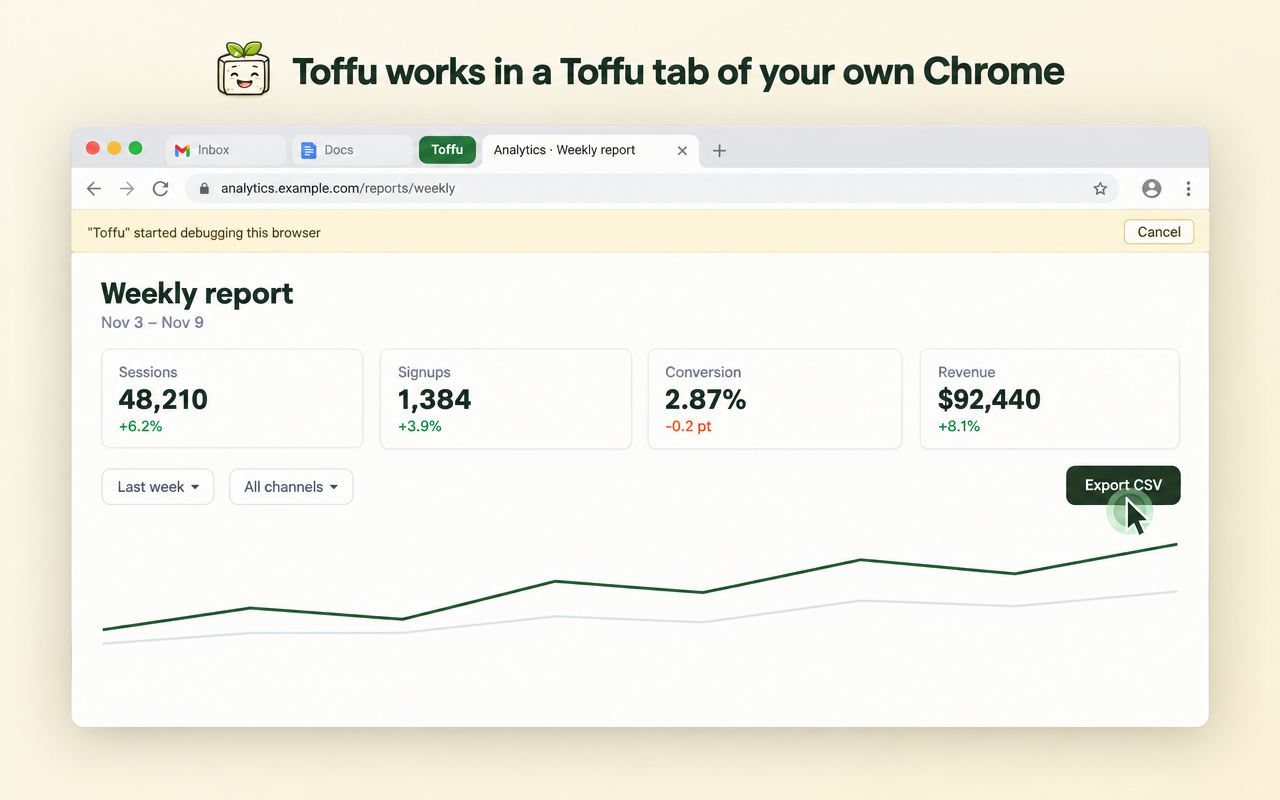
While Toffu works:
- Toffu's green cursor moves to each button and field before it clicks or types, so you can follow every step.
- Chrome shows a bar saying that Toffu started debugging the browser. Click Cancel on that bar to stop Toffu at once.
When a step needs you
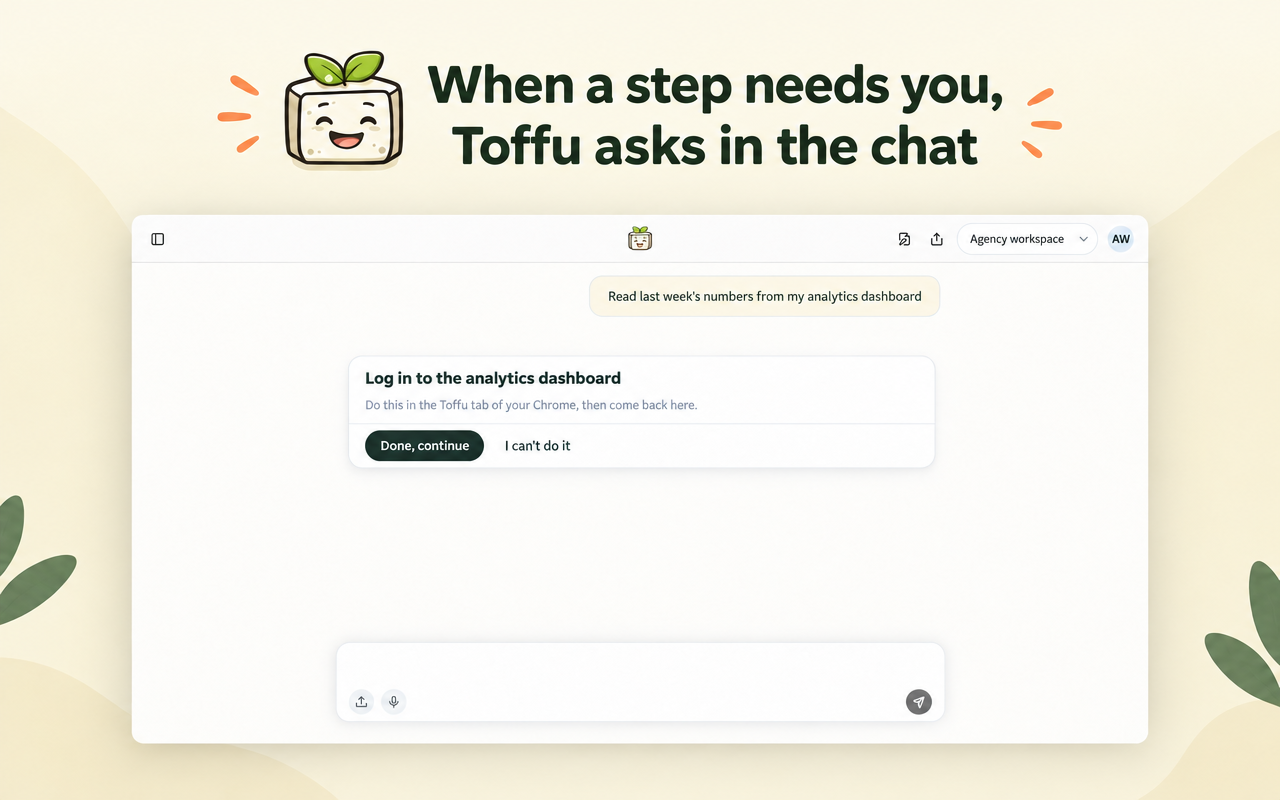
Toffu never types a password and does not solve captchas. When it reaches a login, a 2FA code or a captcha, the chat shows a card: Do this in the Toffu tab of your Chrome, then come back here.
- Do the step in the Toffu tab.
- Click Done, continue in the chat. Toffu continues from there.
Click I can't do it to stop the task.
What Toffu can and cannot see
- Toffu reads the page in the Toffu tab: its address, title, headings, visible text, and the labels and values of links, buttons and fields. It never reads password fields.
- Toffu does not read your cookies, saved passwords, history, bookmarks or other tabs. The extension refuses every browser command except the six it needs to read a page, operate it, and take a screenshot when you ask for one.
- It acts only when you ask it to in Toffu chat.
Details are in our privacy policy.
Limits
- Your Chrome must be open and connected. A scheduled task that asks for your own Chrome cannot stop for a login: if one is needed, Toffu reports it instead of waiting.
- It works from Toffu web chat and scheduled tasks, not from scripts or from other AI assistants over MCP.
Common problems
"The user's Chrome is not connected."
Check that the Toffu extension is installed and turned on in chrome://extensions, and that you are signed in to toffu.ai in the same Chrome. Reload the toffu.ai tab. The extension icon shows ON when it is connected.
Toffu works in the wrong tab. Toffu uses the most recently used tab of the Toffu group. Close the other tabs in that group, or drag the tab you want into it and click it once.
Toffu stopped in the middle. Someone clicked Cancel on Chrome's bar, or the Toffu tab was closed. Ask Toffu to continue.
Need help?
Email support@toffu.ai with a link to the chat.