


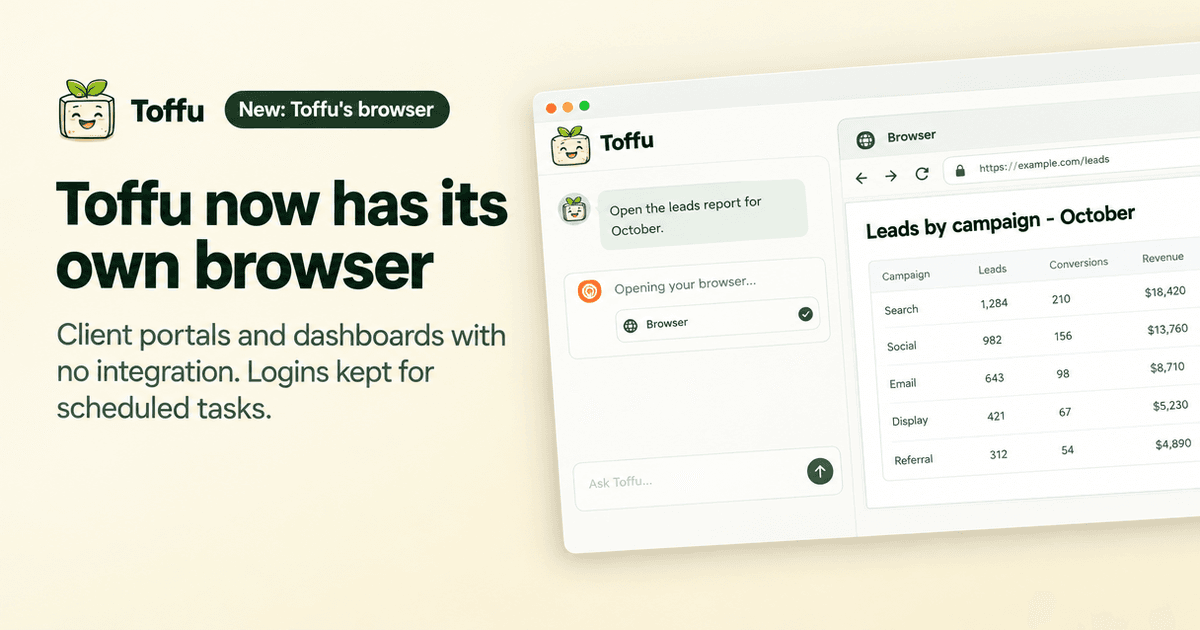
Toffu now has its own browser. It reads client portals, Looker Studio reports and partner dashboards that have no API, sends screenshots of ad previews for client approval, gets its own email address to share reports with, keeps the logins for scheduled tasks, and asks you before any change to delivery, budgets or money.
Google Ads, Meta and GA4 are connected, so Toffu reads them and acts on them. But every agency also works in places with no integration: the client's reporting portal, a Looker Studio report someone else built, a partner dashboard, an affiliate network. Until now, that part ended with "export a CSV and upload it."
Now Toffu has its own browser. Ask as usual, and when the answer sits on a website, Toffu opens it and reads it:
Open the client's reporting portal, read October's leads by campaign, and compare them with what Google Ads reports for the same campaigns.
You see the browser next to the chat
The browser runs on Toffu's servers and shows in a panel next to the chat, so you can watch what Toffu opens and reads.
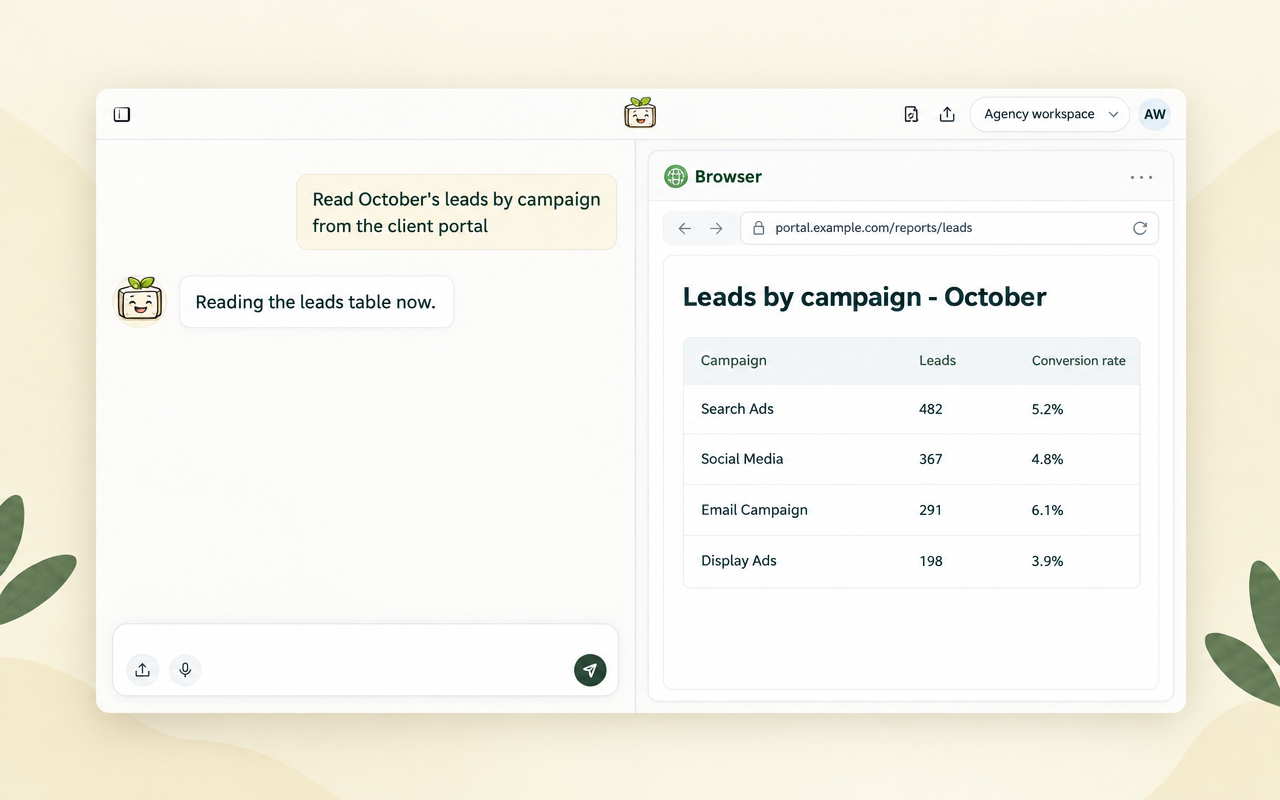
Toffu never types a password. When a site asks for a login, a code or a captcha, the chat asks you to do that step in the browser next to the chat. Your typing goes to the page, not to Toffu. Then Toffu continues from there.
Ad previews for client approval
Before a campaign goes live, the client wants to see the ads the way their customers will. Ask Toffu:
Open the new Summer Sale ads in Ads Manager and send me a screenshot of each feed preview, so I can send them to the client for approval.
Toffu opens each ad's preview inside the ad platform and sends the screenshots back in the chat, ready to forward. It works in any ad platform you can log in to in Toffu's browser.
Log in once, scheduled tasks too
When you log in to a site in Toffu's browser, the login is kept. Later tasks start logged in, and so do scheduled tasks, like a weekly pull from a client portal that runs while your computer is off.
Your logins are yours. Only you can see and use them, and a teammate who asks Toffu to browse gets a browser of their own. You see the list in AI Settings → Browser logins. Remove a login there, and Toffu logs in again the next time.
A scheduled task never waits for a person. If a site asks for a login no one saved, the task reports it, and you log in once from the chat.
Toffu gets its own email address
Every workspace gets its own Toffu address, like your-workspace@agent.toffu.ai. It is a real Google account, and it belongs to the workspace, not to you.
So you share a Looker Studio report with Toffu the way you share it with a teammate: add the address as a Viewer on the report and its data source. Toffu opens Google pages signed in as that account, never as you. When a report has no access, Toffu gives you the address in the chat. Share it once, and every later task, scheduled ones too, can read the report.
The address also gets email. When a site sends a sign-in code or a confirmation link to it, Toffu reads it and uses it itself. Codes sent to your own email or phone stay yours.
It asks before it changes anything that costs money
Reading is one thing. Changing a campaign is another. Before the click that pauses a campaign (which restarts its learning phase), changes a budget, bid or target, publishes, or moves money, Toffu stops and asks you in the chat. The card shows the exact change and what it does. Toffu makes that change only after your yes, and only that one change. A scheduled task cannot ask anyone, so it does not make such a change. It reports it to you instead.
Toffu also rejects cookie banners by itself.
Get started
Toffu's browser is on in every workspace. On an agency account, an admin of the agency turns it on once in AI Settings → Browser logins, and it then works in every client workspace.
Want Toffu to work in your own Chrome instead, with the sessions you already have? See the Toffu Chrome extension.